# Reporting and Integrations

Wilhelmina Aumann and Dylan Watkins' Project

The first part of this project explores the depth of the **reporting tools in Salesforce.**  
If you are already familiar with navigating the RAMS org interface, you may skip the first chapter.

The second part of this project will produce a **Proof-of-Concept integration** with one or more third party services. At this time, this part is in the exploration stages. I expect to use **Apex** and **Callout** features in Salesforce to link to our **GiveCampus** sandbox API.

# Configure Org Nav Bar

#### Welcome to RAMS!

Upon logging in, you will be redirected to the Salesforce org home screen.  
It may look slightly different from this early version, but the core functions will be the same.

#### Navigating to Reports

There are two ways to reach the **Reports** tab.

1. **App Launcher** [![firefox_4LsSosy9wq.png](https://bookstack.foundation.uri.edu/uploads/images/gallery/2026-07/scaled-1680-/5jErh9msDshz4P6F-firefox-4lssosy9wq.png)](https://bookstack.foundation.uri.edu/uploads/images/gallery/2026-07/5jErh9msDshz4P6F-firefox-4lssosy9wq.png)
2. **Nav bar** shortcuts, such as [![image.png](https://bookstack.foundation.uri.edu/uploads/images/gallery/2026-07/scaled-1680-/MvpyYlhjhH1MoTtj-image.png)](https://bookstack.foundation.uri.edu/uploads/images/gallery/2026-07/MvpyYlhjhH1MoTtj-image.png)

You can find both of these methods on the top white strip of your screen.  
By default, [![image.png](https://bookstack.foundation.uri.edu/uploads/images/gallery/2026-07/scaled-1680-/MvpyYlhjhH1MoTtj-image.png)](https://bookstack.foundation.uri.edu/uploads/images/gallery/2026-07/MvpyYlhjhH1MoTtj-image.png) is not included on the nav bar.

[![firefox_dyghCtOsyY.png](https://bookstack.foundation.uri.edu/uploads/images/gallery/2026-07/scaled-1680-/Mhucf5RDzqCbdImA-firefox-dyghctosyy.png)](https://bookstack.foundation.uri.edu/uploads/images/gallery/2026-07/Mhucf5RDzqCbdImA-firefox-dyghctosyy.png)

<p class="callout info">Sandbox version with sample data</p>

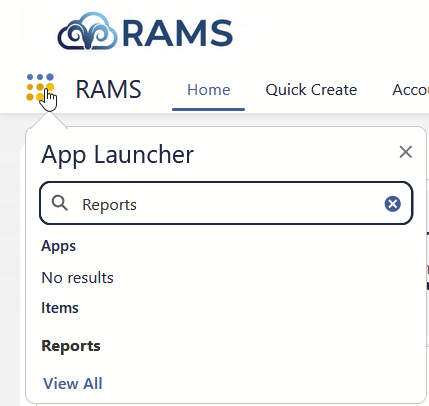
##### Using the App Launcher

To use the **App Launcher**, click [![firefox_4LsSosy9wq.png](https://bookstack.foundation.uri.edu/uploads/images/gallery/2026-07/scaled-1680-/5jErh9msDshz4P6F-firefox-4lssosy9wq.png)](https://bookstack.foundation.uri.edu/uploads/images/gallery/2026-07/5jErh9msDshz4P6F-firefox-4lssosy9wq.png) and enter a term in the search box.   
Click **Reports** to see all reports and report creation tools.

[![image.png](https://bookstack.foundation.uri.edu/uploads/images/gallery/2026-07/scaled-1680-/dFna27fnH8mBvrij-image.png)](https://bookstack.foundation.uri.edu/uploads/images/gallery/2026-07/dFna27fnH8mBvrij-image.png)
##### Editing the Nav Bar

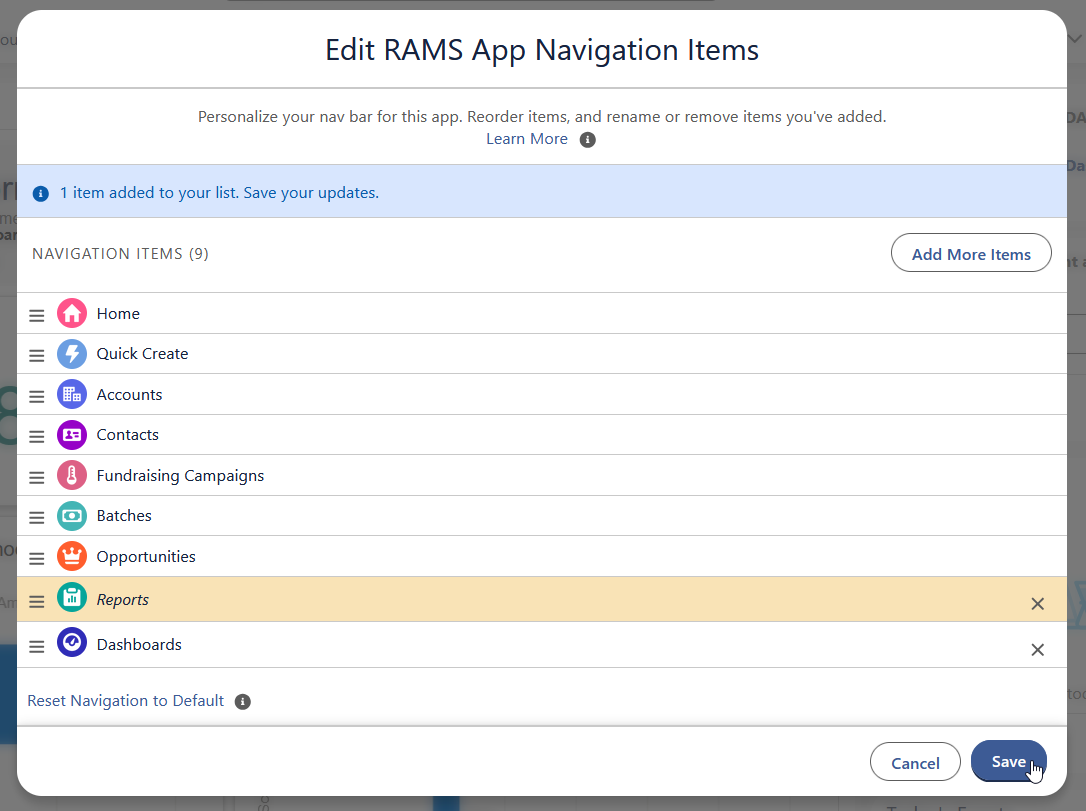
To edit your nav bar,

1. Click [![image.png](https://bookstack.foundation.uri.edu/uploads/images/gallery/2026-07/scaled-1680-/TtX8ppesq5rRUCNl-image.png)](https://bookstack.foundation.uri.edu/uploads/images/gallery/2026-07/TtX8ppesq5rRUCNl-image.png) at the top right corner and, in the next screen that will pop up, locate the, **"Add More Items"** button.  
    [![image.png](https://bookstack.foundation.uri.edu/uploads/images/gallery/2026-07/scaled-1680-/UmPReIEmBYA0q9sE-image.png)](https://bookstack.foundation.uri.edu/uploads/images/gallery/2026-07/UmPReIEmBYA0q9sE-image.png)
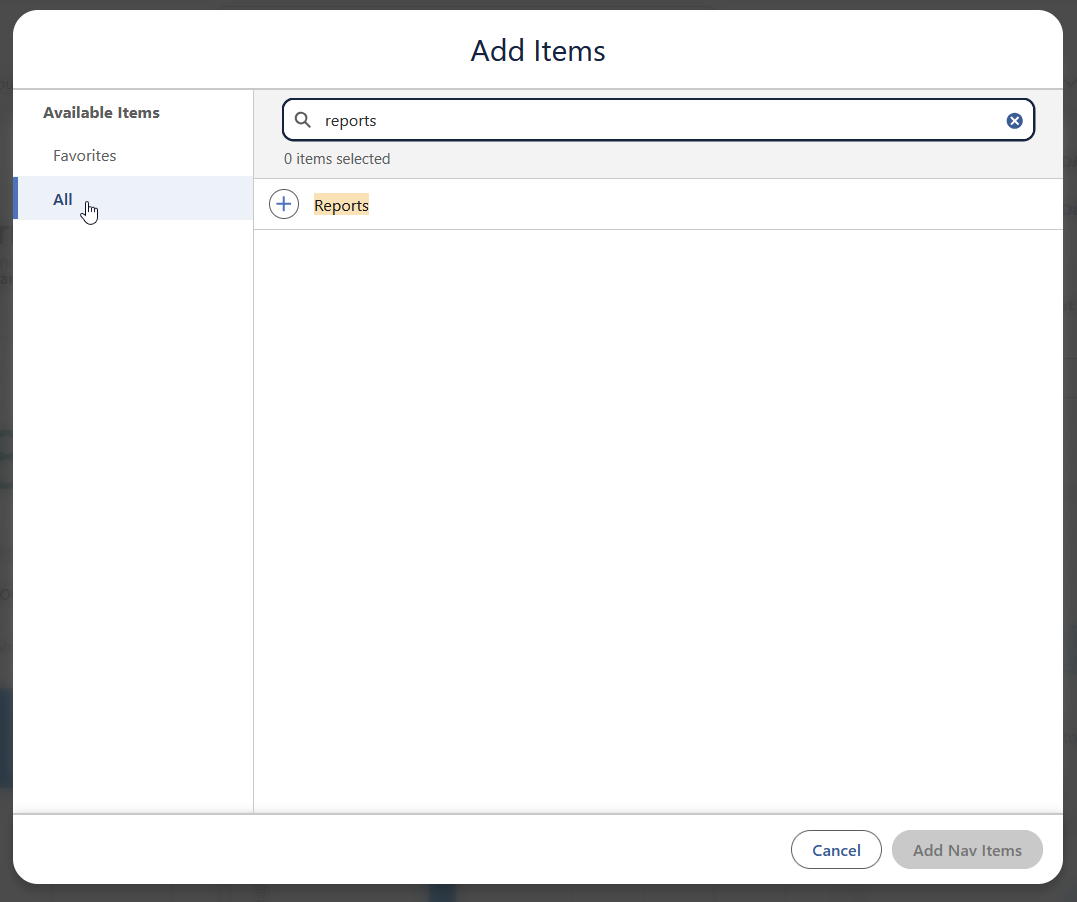
2. On the next screen, **click "All" in Available Items,** then search for any pages, apps, or objects you want in your nav bar.  
     Click [![image.png](https://bookstack.foundation.uri.edu/uploads/images/gallery/2026-07/scaled-1680-/dyQxe82HypGsKbiw-image.png)](https://bookstack.foundation.uri.edu/uploads/images/gallery/2026-07/dyQxe82HypGsKbiw-image.png) to select each item.
3. Click, **"Add Nav Items"** in the bottom right corner.
4. Reorder your nav items by clicking and dragging the [![image.png](https://bookstack.foundation.uri.edu/uploads/images/gallery/2026-07/scaled-1680-/ztfWi2AzJRJF9NVS-image.png)](https://bookstack.foundation.uri.edu/uploads/images/gallery/2026-07/ztfWi2AzJRJF9NVS-image.png) handles.  
     Your nav bar is only attached to your account, so feel free to customize it however you like.  
     Click, **"Save"** when you're finished.

[![firefox_krqGKfU9g9.png](https://bookstack.foundation.uri.edu/uploads/images/gallery/2026-07/scaled-1680-/OpsbWbmOYJcXigrA-firefox-krqgkfu9g9.png)](https://bookstack.foundation.uri.edu/uploads/images/gallery/2026-07/OpsbWbmOYJcXigrA-firefox-krqgkfu9g9.png)[ ![firefox_nyMv6x87C3.png](https://bookstack.foundation.uri.edu/uploads/images/gallery/2026-07/scaled-1680-/eFohJDoVu4JjUAQY-firefox-nymv6x87c3.png)](https://bookstack.foundation.uri.edu/uploads/images/gallery/2026-07/eFohJDoVu4JjUAQY-firefox-nymv6x87c3.png)
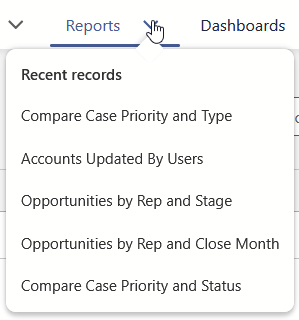
With the **Reports** nav bar shortcut, you can quickly jump to the **Reports** page from anywhere in the org.

See your five most recently viewed reports by clicking the tab chevron.

[![image.png](https://bookstack.foundation.uri.edu/uploads/images/gallery/2026-07/scaled-1680-/MtqLyePyZCNMyV0Q-image.png)](https://bookstack.foundation.uri.edu/uploads/images/gallery/2026-07/MtqLyePyZCNMyV0Q-image.png)
# Build First Report (Demo)

Guided exercise to show report-building skills with an example.

- [x] STL
- [ ] Report Type 
    - [ ] Objects
    - [ ] Fields
    - [ ] Records
- [ ] Outline Tab
- [ ] Filter Tab 
    - [ ] Show Me
    - [ ] Use ***smallest*** applicable date range
- [ ] Joined Report
- [ ] Group by a shared field (Joined)
- [ ] Fields Menu in Joined Reports

# Build First Report (Definitions & Notes)

Basic skills to use on any report.

# Summarize in Reports


# Advanced Report Filtering

## <span class="TextRun MacChromeBold SCXO183947872 BCX0" data-contrast="auto" lang="EN-US" xml:lang="EN-US"><span class="NormalTextRun SCXO183947872 BCX0">Filter Logic</span></span><span class="EOP SCXO183947872 BCX0"> </span>

<span class="TextRun SCXO183947872 BCX0" data-contrast="auto" lang="EN-US" xml:lang="EN-US"><span class="NormalTextRun SCXO183947872 BCX0">By default, multiple filters on a report are combined with AND, meaning a record must match every filter to appear. Salesforce reporting provides more flexibility in report creation by allowing you to specify and give priority to certain filters using **Filter Logic**. Thus feature lets you control how filters combine, using AND, OR, and NOT, including parentheses for grouping<span class="LineBreakBlob BlobObject DragDrop SCXO183947872 BCX0"><span class="SCXO183947872 BCX0"> </span></span></span></span>

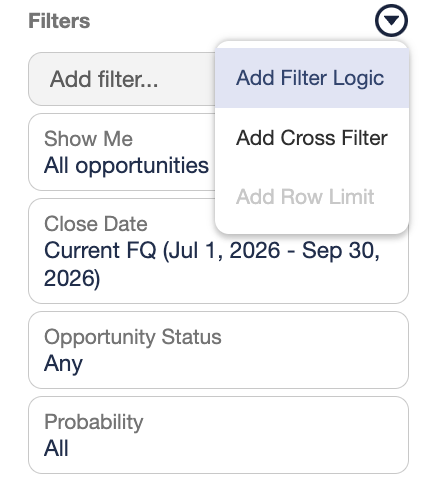
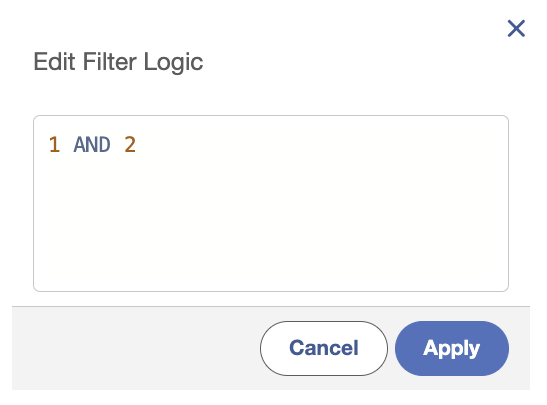
### <span class="TextRun SCXO183947872 BCX0" data-contrast="auto" lang="EN-US" xml:lang="EN-US"><span class="NormalTextRun SCXO183947872 BCX0"><span class="LineBreakBlob BlobObject DragDrop SCXO183947872 BCX0"><span class="SCXO183947872 BCX0">Adding Filter Logic</span></span></span></span>

<span class="TextRun SCXO183947872 BCX0" data-contrast="auto" lang="EN-US" xml:lang="EN-US"><span class="NormalTextRun SCXO183947872 BCX0">After you start making a report of any object type, you can start adding the desired filters to the report on the filter tab. Once at least two filters are added here, you can use the dropdown arrow at the top right of the left panel to select filter logic.</span></span><span class="EOP SCXO183947872 BCX0"> [![Screenshot 2026-07-07 at 4.51.49 PM.png](https://bookstack.foundation.uri.edu/uploads/images/gallery/2026-07/scaled-1680-/IYpRx2ekIZCDAvWM-screenshot-2026-07-07-at-4-51-49-pm.png)](https://bookstack.foundation.uri.edu/uploads/images/gallery/2026-07/IYpRx2ekIZCDAvWM-screenshot-2026-07-07-at-4-51-49-pm.png)[![Screenshot 2026-07-07 at 4.52.40 PM.png](https://bookstack.foundation.uri.edu/uploads/images/gallery/2026-07/scaled-1680-/bjd9JeGw8CZ4JCR7-screenshot-2026-07-07-at-4-52-40-pm.png)](https://bookstack.foundation.uri.edu/uploads/images/gallery/2026-07/bjd9JeGw8CZ4JCR7-screenshot-2026-07-07-at-4-52-40-pm.png)</span>
### Filter Logic Formulas

Once the filter logic menu is open you will see that the default value of "1 AND 2" will be shown. (If you have more filters those would be listed with AND as well). This is the logic that is usually applied in reporting, where all filters must apply to the record for it to be included in the report. Each added filter is automatically assigned a number based soon order added, this can be grouped in the formula using parentheses.

**Accepted terms:** AND, OR, NOT

<table border="1" id="bkmrk-example-record-will-" style="border-collapse: collapse; width: 47.619%; height: 119.188px;"><colgroup><col style="width: 28.7698%;"></col><col style="width: 71.2302%;"></col></colgroup><tbody><tr style="height: 29.7969px;"><td style="height: 29.7969px;">**Example**  
</td><td style="height: 29.7969px;">**Record will show when:**</td></tr><tr style="height: 29.7969px;"><td style="height: 29.7969px;">1 AND 2</td><td style="height: 29.7969px;">Both filter 1 and 2 apply.</td></tr><tr style="height: 29.7969px;"><td style="height: 29.7969px;">1 OR 2</td><td style="height: 29.7969px;">Either filter 1, filter 2, or both apply.</td></tr><tr style="height: 29.7969px;"><td style="height: 29.7969px;">NOT(1)</td><td style="height: 29.7969px;">Filter 1 does not apply.</td></tr></tbody></table>

## <span class="EOP SCXO183947872 BCX0"><span class="TextRun SCXO160617261 BCX0" data-contrast="auto" lang="EN-US" xml:lang="EN-US"><span class="NormalTextRun SCXO160617261 BCX0">Cross Filters</span></span></span>

<span class="EOP SCXO183947872 BCX0"><span class="TextRun SCXO160617261 BCX0" data-contrast="auto" lang="EN-US" xml:lang="EN-US"><span class="NormalTextRun SCXO160617261 BCX0">Cross filter is another feature of salesforce reporting that allows you to filter a report based on the presence or absence of related child records. <span class="TextRun SCXO40806063 BCX0" data-contrast="auto" lang="EN-US" xml:lang="EN-US"><span class="NormalTextRun SCXO40806063 BCX0">Unlike a standard filter, a Cross Filter does not let you display fields from the child object on the report, it only has the ability to determine whether the parent record qualifies.</span></span><span class="EOP SCXO40806063 BCX0"> </span>  
</span></span></span>

<span class="EOP SCXO183947872 BCX0"><span class="TextRun SCXO160617261 BCX0" data-contrast="auto" lang="EN-US" xml:lang="EN-US"><span class="NormalTextRun SCXO160617261 BCX0">**Examples**:</span></span></span>

1. <span class="EOP SCXO183947872 BCX0"><span class="TextRun SCXO160617261 BCX0" data-contrast="auto" lang="EN-US" xml:lang="EN-US"><span class="NormalTextRun SCXO160617261 BCX0">Show accounts with attached opportunities</span></span></span>
2. <span class="EOP SCXO183947872 BCX0"><span class="TextRun SCXO160617261 BCX0" data-contrast="auto" lang="EN-US" xml:lang="EN-US"><span class="NormalTextRun SCXO160617261 BCX0">Show accounts without contacts</span></span></span>

### <span class="EOP SCXO183947872 BCX0"><span class="TextRun SCXO160617261 BCX0" data-contrast="auto" lang="EN-US" xml:lang="EN-US"><span class="NormalTextRun SCXO160617261 BCX0">Adding a Cross Filter</span></span></span>

<span class="EOP SCXO183947872 BCX0"><span class="TextRun SCXO160617261 BCX0" data-contrast="auto" lang="EN-US" xml:lang="EN-US"><span class="NormalTextRun SCXO160617261 BCX0"><span class="TextRun SCXO183947872 BCX0" data-contrast="auto" lang="EN-US" xml:lang="EN-US"><span class="NormalTextRun SCXO183947872 BCX0">After you start making a report of any object type, you can add a cross filter by switching to the filters tab and using the dropdown menu to select "Add Cross Filter". This will open a menu allowing you to specify if you want to show records with or without a secondary object attached. </span></span></span></span></span>

<span class="EOP SCXO183947872 BCX0"><span class="TextRun SCXO160617261 BCX0" data-contrast="auto" lang="EN-US" xml:lang="EN-US"><span class="NormalTextRun SCXO160617261 BCX0"><span class="TextRun SCXO183947872 BCX0" data-contrast="auto" lang="EN-US" xml:lang="EN-US"><span class="NormalTextRun SCXO183947872 BCX0">[![Screenshot 2026-07-07 at 4.50.26 PM.png](https://bookstack.foundation.uri.edu/uploads/images/gallery/2026-07/scaled-1680-/F4lhyOCJ5fWkkgSc-screenshot-2026-07-07-at-4-50-26-pm.png)](https://bookstack.foundation.uri.edu/uploads/images/gallery/2026-07/F4lhyOCJ5fWkkgSc-screenshot-2026-07-07-at-4-50-26-pm.png)[![Screenshot 2026-07-07 at 4.49.01 PM.png](https://bookstack.foundation.uri.edu/uploads/images/gallery/2026-07/scaled-1680-/5uoDhHRGhJmgMzDk-screenshot-2026-07-07-at-4-49-01-pm.png)](https://bookstack.foundation.uri.edu/uploads/images/gallery/2026-07/5uoDhHRGhJmgMzDk-screenshot-2026-07-07-at-4-49-01-pm.png)</span></span></span></span></span>

<span class="EOP SCXO183947872 BCX0"><span class="TextRun SCXO160617261 BCX0" data-contrast="auto" lang="EN-US" xml:lang="EN-US"><span class="NormalTextRun SCXO160617261 BCX0"><span class="TextRun SCXO183947872 BCX0" data-contrast="auto" lang="EN-US" xml:lang="EN-US"><span class="NormalTextRun SCXO183947872 BCX0">After applying the cross filter and running the report, you should see that the records not matching your cross filter are no longer appearing. </span></span></span></span></span>

## <span class="EOP SCXO183947872 BCX0"><span class="TextRun SCXO160617261 BCX0" data-contrast="auto" lang="EN-US" xml:lang="EN-US"><span class="NormalTextRun SCXO160617261 BCX0">Lock Filters</span></span></span>

<span class="EOP SCXO183947872 BCX0"><span class="TextRun SCXO160617261 BCX0" data-contrast="auto" lang="EN-US" xml:lang="EN-US"><span class="NormalTextRun SCXO160617261 BCX0">If you are planning on sharing a record with others, a useful security feature provided by salesforce is the ability to lock filters. <span class="TextRun SCXO209318427 BCX0" data-contrast="auto" lang="EN-US" xml:lang="EN-US"><span class="NormalTextRun SCXO209318427 BCX0">Normally, anyone viewing a report can change the filter values on the run page, this can be prevented on more essential reports by simply checking the locked checkbox</span></span></span></span></span>

### <span class="EOP SCXO183947872 BCX0"><span class="TextRun SCXO160617261 BCX0" data-contrast="auto" lang="EN-US" xml:lang="EN-US"><span class="NormalTextRun SCXO160617261 BCX0">How to Lock a Filter</span></span></span>

<div class="OutlineElement Ltr SCXO123533087 BCX0" id="bkmrk--1"></div><div class="WACImageContainer Selected OnlyImageSelected OnlyImageSelectedMove SCXO123533087 BCX0" id="bkmrk-click-the-filter-you" role="presentation">Click the filter you want to lock to edit it (same menu is accessed when creating new filter), and in the bottom left you simply check the "Locked" checkbox. Afterwards just hit apply and your changes will be saved preventing anyone from editing the filter on the run reports page.</div><div class="WACImageContainer Selected OnlyImageSelected OnlyImageSelectedMove SCXO123533087 BCX0" id="bkmrk--2" role="presentation">[![lock-filter](https://bookstack.foundation.uri.edu/uploads/images/gallery/2026-07/scaled-1680-/BKB8fvSYV0fYvTwZ-screenshot-2026-07-07-at-4-55-37-pm.png)](https://bookstack.foundation.uri.edu/uploads/images/gallery/2026-07/BKB8fvSYV0fYvTwZ-screenshot-2026-07-07-at-4-55-37-pm.png)</div><div class="WACImageContainer Selected OnlyImageSelected OnlyImageSelectedMove SCXO123533087 BCX0" id="bkmrk--3" role="presentation"></div>

# Advanced Report Grouping


# Advanced Report Formulas


# Final Notes on Reporting

concepts that don't fit into any previous categories