
Post-Refresh
Follow Post-Refresh Video Tutorial
Flow Configuration
How to find the flows is a part of the video linked above. The flows in the red box are not necessary to activate. The rest must be activated.
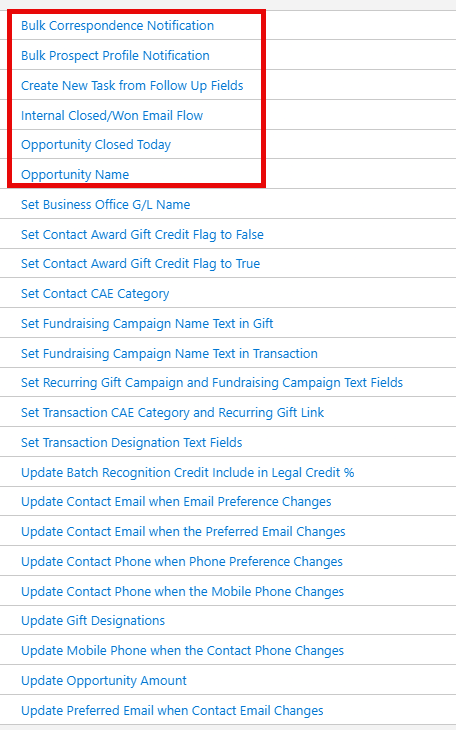
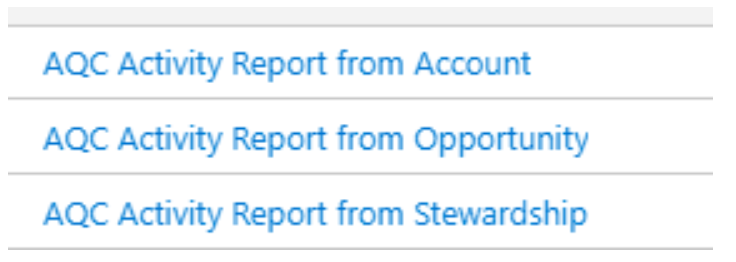
Additionally, please ensure these flows are active. They are not part of the managed package.
User Access Troubleshooting
If users cannot access the sandbox from their accounts, follow these steps:
Install Apsona
Download and install the Apsona application suite, find specific links here.
Consultants recommended installing the Dedupe and Match Add-on. Instructions can be found here.
Configure Profiles
Configure the following profiles based on their specific requirements:
Airflow Connect Profile
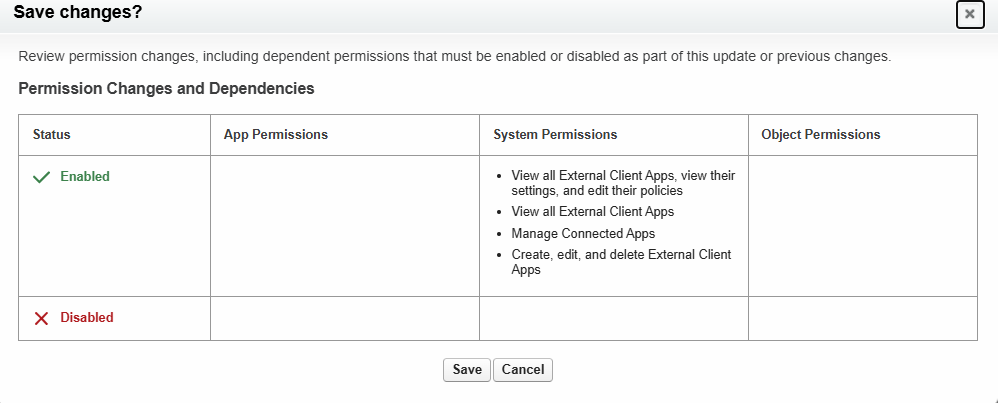
The screenshot below summarizes the system permissions to be enabled for this profile. Refer to the Connecting Apache Airflow to Salesforce within the Summer Internship Project book for specification details.
Apsona Reporter Profile
**Required Connections:**
- [SPECIFY REQUIRED CONNECTIONS HERE]
Recreate Permission Set Groups
Use this excel spreadsheet (recommendations of consultants) to recreate the permission groups/