Configure Org Nav Bar
Welcome to RAMS!
Upon logging in, you will be redirected to the Salesforce org home screen.
It may look slightly different from this early version, but the core functions will be the same.
Navigating to Reports
There are two ways to reach the Reports tab.
- App Launcher

- Nav bar shortcuts
You can find both of these methods on the top white strip of your screen.
By default,  is not included on the nav bar.
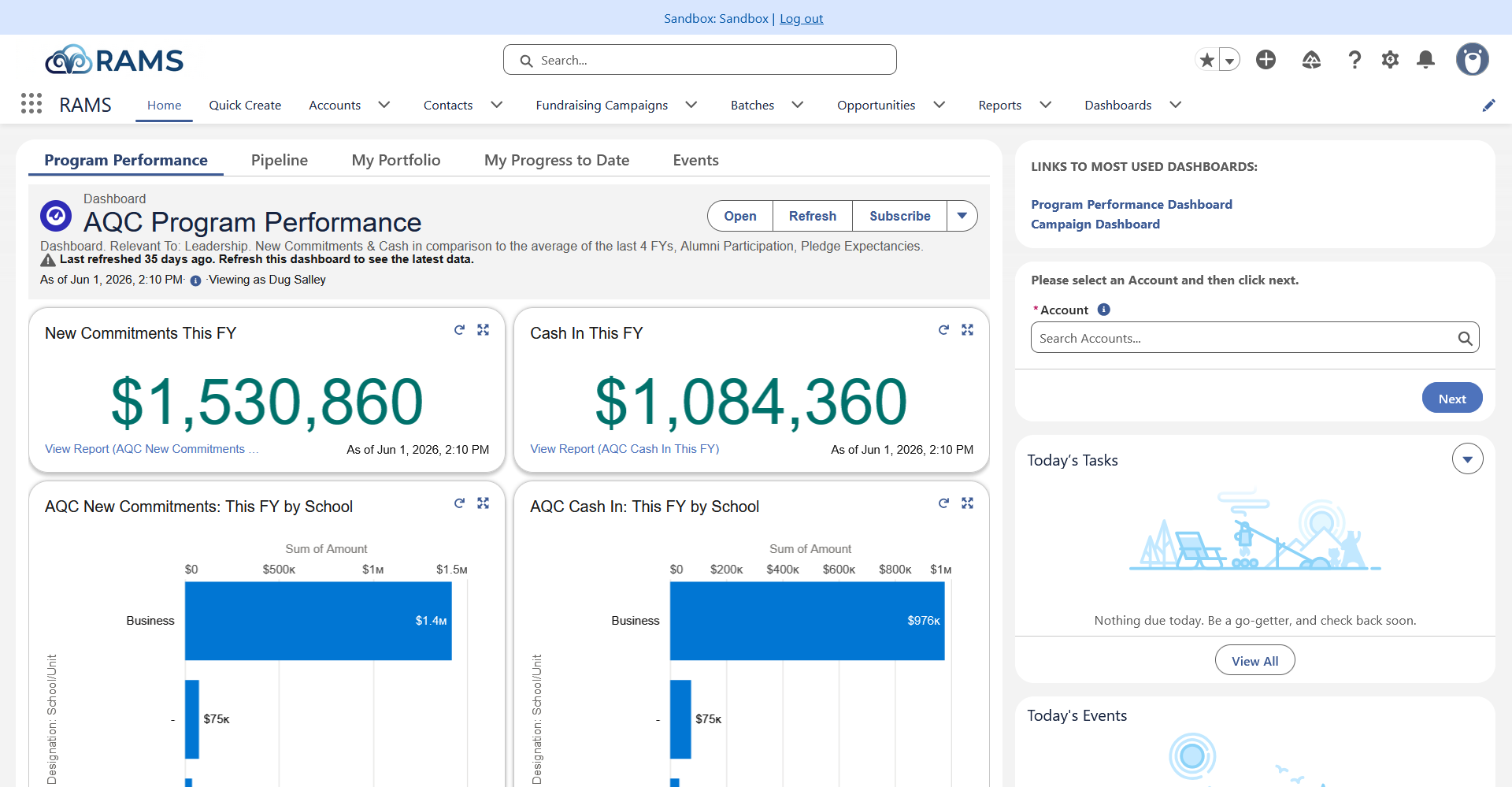
Sandbox view with sample data
Using the App Launcher
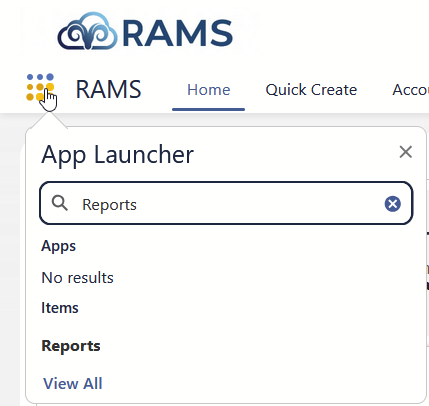
To use the App Launcher, click  and enter a term in the search box.
Click Reports to see all reports and report creation tools.
Editing the Nav Bar
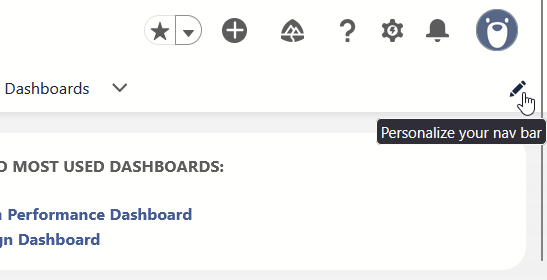
- Click
 at the top right corner and locate the, "Add More Items" button.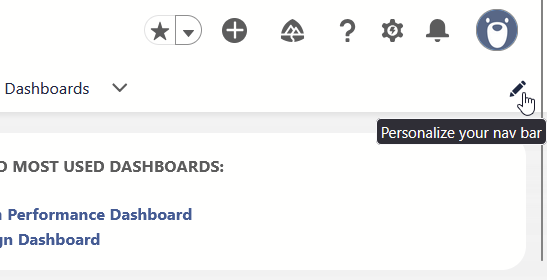
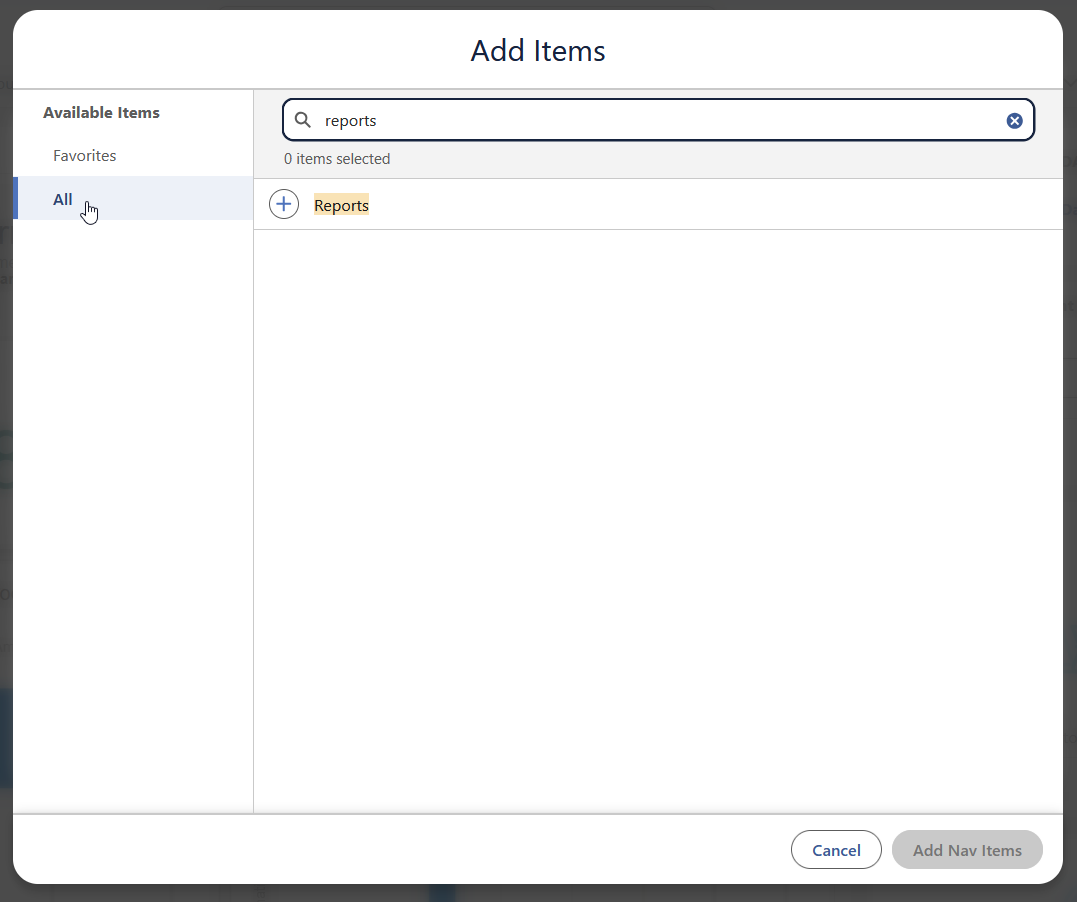
- On the next screen, click "All" in Available Items, then search for any pages, apps, or objects you want in your nav bar.
Click to select each item.
 - Click, "Add Nav Items" in the bottom right corner.
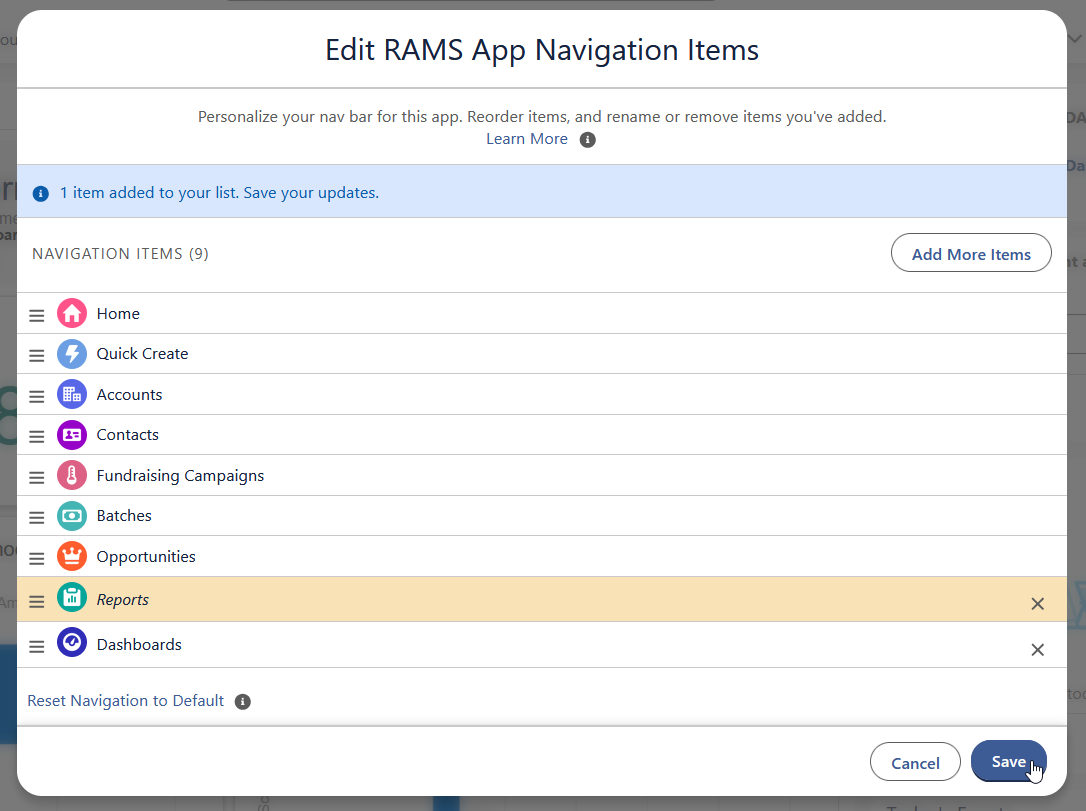
- Reorder your nav items by clicking and dragging the
 handles.
Your nav bar is only attached to your account, so feel free to customize it however you like.
Click, "Save" when you're finished.



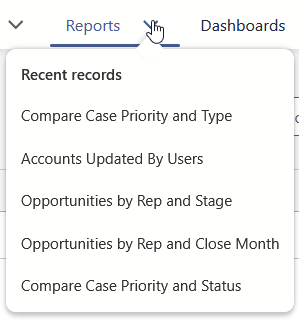
See your five most recently viewed reports by clicking the tab chevron.