
Connecting PostgreSQL to Salesforce
Last updated: 07/15/2026
Once a PostgreSQL database has been created and configured to accept incoming connections, connecting an Apache Airflow environment to that database is very straightforward. However, before this connection can be established, however, the PostgreSQL provider must first be installed in the Airflow environment.
Installing the PostgreSQL provider in the Airflow environment
A provider is a package that can be installed in an Airflow environment to extend its capabilities.
Editing the requirements file
To install the PostgreSQL provider, the following line must be added to the requirements file of the environment:
apache-airflow-providers-postgres>=6.3.0At the end of each line, the version of the package to be installed can be specified. This is not mandatory but highly recommended to prevent errors and ensure compatibility across all providers and the Airflow environment. The version of each package can be strictly enforced by using a double equal sign (==). However, it is recommended to only enforce the oldest version that can be installed by using the greater than or equal sign (>=)—this way, a newer version will be automatically installed if available.
The version of the provider depends on the latest release available as well as the version of Apache Airflow being used.
As a reminder, the requirements file is located in the S3 bucket linked to the Airflow environment for MWAA, and in the requirements folder at the root of the aws-mwaa-local-runner directory (which was cloned from the GitHub repository) for the local runner.
Updating the Airflow environment
Once the requirements file has been edited, the Airflow environment must be updated in order for the provider to be installed. The process to update an environment in MWAA is described in this section of the page 'Setting up Apache Airflow', and the process to update an environment in the local runner is described in this section of the same page.
When updating an MWAA environment, in the DAG Code in Amazon S3 section, if the configuration is set to a specific version of the requirements file, the newly edited version must be explicitly selected, otherwise the requirements will remain unchanged. If no specific version is selected (the drop-down list still displays Choose a version), nothing needs to be done, as the latest version of the requirements file will be selected automatically.
Configuring the connection
After the Salesforce provider has been installed and the Airflow environment updated, the last step is to create a new connection and configure it properly. Connections are managed from the 'Connections' page, which can be accessed from the 'Admin' tab, located in the main navigation bar.
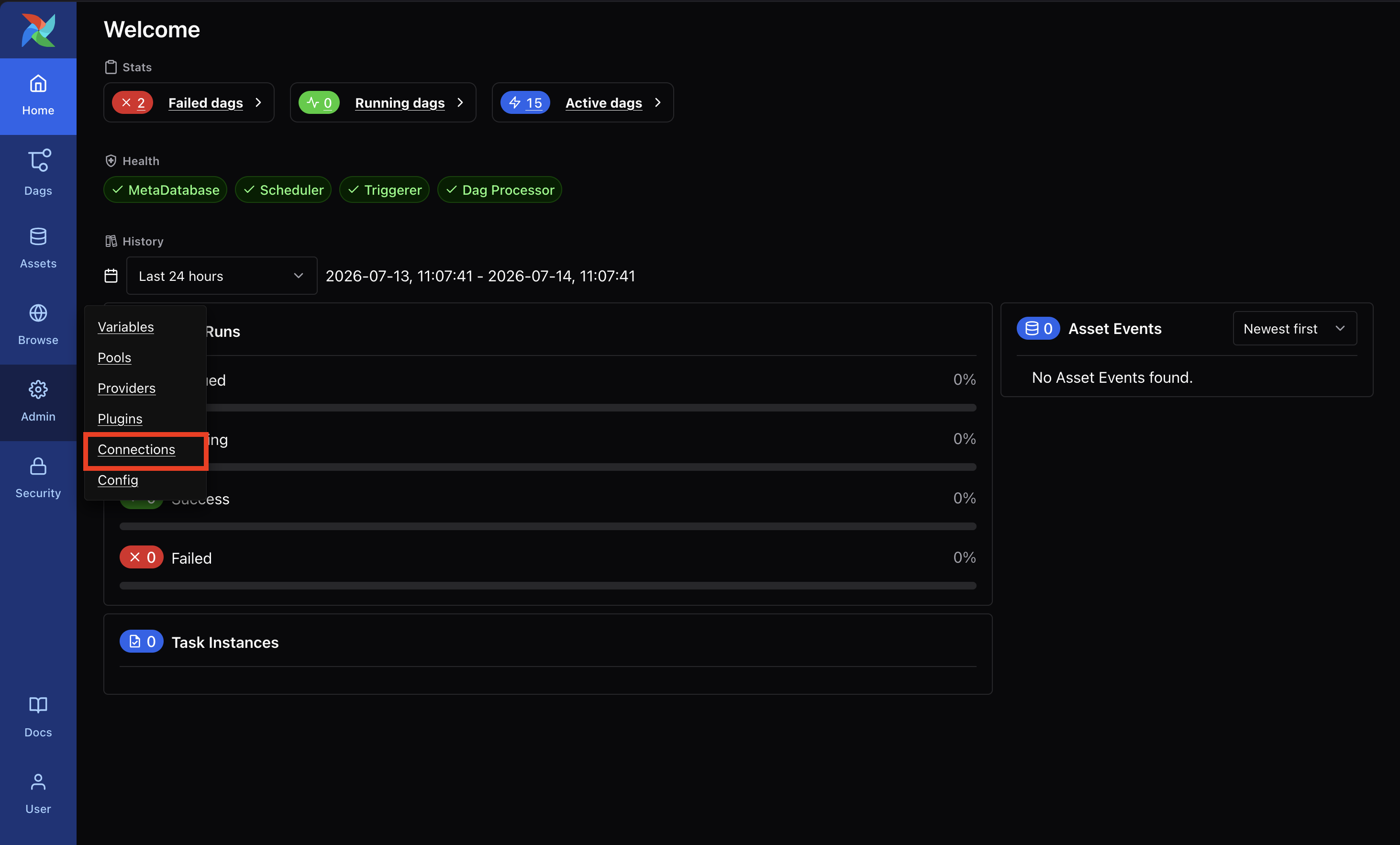
In the user interface of Airflow environments using version 3.0.6 and above, the navigation bar is located on the left.
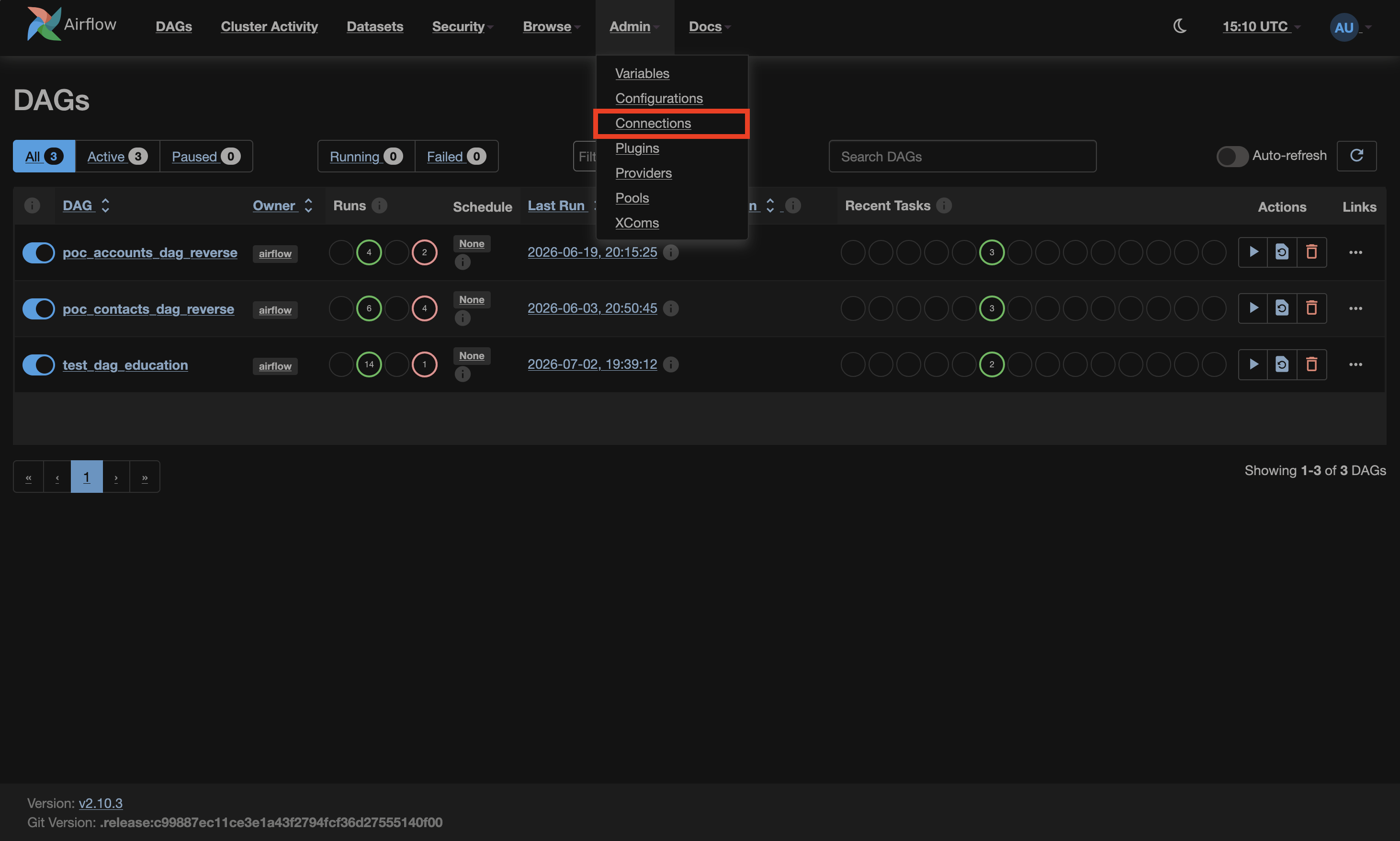
In the user interface of Airflow environments using version 2.10 (as mentioned in the 'Setting up Apache Airflow' page, this is latest available version for the local runner) and below, the navigation bar is located on the top.
On the 'Connections' page, a new connection can be created by clicking on the 'Add Connection' button (in Airflow 3.0.6 and above) or the '+' button (in Airflow 2.10 and below). After this button is clicked, a window should appear on the screen. The first two fields that must be completed are the 'Connection ID' and the 'Connection Type'—these fields are mandatory for every connection.
- The 'Connection ID' is the name of the connection. It can be anything, but it must be unique. If there are no other PostgreSQL connections in the environment, it is recommended to use
postgres_default, which is the default value of thedefault_conn_nameparameter of the PostgreSQL Hook. - The 'Connection Type', as its name indicates, is simply the type of the connection. The type 'Postgres' must be selected. If it does not appear in the drop-down list, then the Salesforce provider might have not been installed properly.
In the local runner, a default connection is automatically created for each connection type. As a result, the connection named postgres_default should already exist. This connection can be edited instead of creating a new one.
Once these two fields have been completed, the connection can be configured. Several fields must be completed in order for the Airflow environment to be able to establish a connection to the database:
- 'Host'
- 'Port'
- 'Database'
- 'Login'
- 'Password'
The 'Host' field specifies the host name or the IP address of the PostgreSQL server. The Airflow environment must be able to reach this host over the network. For the proof of concept, the server is hosted and running on an Amazon EC2 instance, publicly accessible over the Internet, named foundation-etl-poc-server and located in the 'ITS shared non-prod' account,account.
The accessibleEC2 overinstance used for the Internet.proof of concept can only be reached using SSH with a key pair that was registered beforehand. It cannot be reached using a password.
To authorize the Airflow environment to access the PostgreSQL database hosted on the EC2 instance, the following configuration was necessary:
The 'Port' field specifies the TCP port used by the PostgreSQL server. The default PostgreSQL port is 5432, which should be used unless the server has been configured to listen on another port. For the proof of concept, this default port is used.
The 'Database' field specifies the name of the PostgreSQL database the Airflow environment must connect to. For the proof of concept, a database named snowflake_mock iswas used.created.
The Airflow environment will connect to the database as a specific user. The 'Login' field containsspecifies the username usedof tothat authenticate with PostgreSQL.user. In the databasePostgreSQL server used for the proof of concept,concept, a dedicated user named airflow was created.
For security reasons,reasons and to follow the principle of least privilege, it is heavilyhighly recommended to not use the database administrator (usually named postgres) and to instead create a dedicated database user forwith Apacheminimum Airflow instead of using the database administrator account.permissions. This user shouldcan then be granted only the permissions required by the DAGsAirflow thatenvironment, willand accessonly on the database.databases Followingit theneeds principleto of least privilege reduces the impact of accidental modifications and limits the consequences of compromised credentials.access.
The 'Password' field containsspecifies the password associated with the PostgreSQL user.user whose username was entered in the 'Username' field.
SinceAs thisthe fieldpassword containsis a sensitive information,piece Airflowof storesdata, it securely and doesis not displaydisplayed itsinside valuethe text box of the 'Password' field when the connection is edited.edited, unlike the other fields (the text box will be blank or display '***'). However, it does not mean that it was not saved. If it needs to be replaced, the new password can simply be pasted into the text box, the same way as explained above.
Using the PostgreSQL connection in a DAG
The PostgreSQL provider includes the PostgresHook, which retrieves the configured connection from Airflow and establishes the connection to the database.
from datetime import datetime

from airflow.decorators import dag, task
from airflow.providers.postgres.hooks.postgres import PostgresHook


@dag(
    dag_id="postgres_dag_example",
    schedule=None,
    start_date=datetime(2026, 1, 1),
    catchup=False,
)
def postgres_dag_example():

    @task
    def postgres_task_example():

        # By default, the PostgresHook retrieves the connection
        # named "postgres_default". If another connection ID was
        # used, it must be specified here.

        hook = PostgresHook()
        # or
        # hook = PostgresHook(postgres_conn_id="my_postgres_connection")

        # Execute a SQL query.

        records = hook.get_records(
            "SELECT id, first_name, last_name FROM employees LIMIT 5"
        )

        for record in records:
            print(record)

    postgres_task_example()


postgres_dag_example()
If more advanced database operations are required, the PostgresHook also provides direct access to the underlying database connection and cursor, allowing any SQL statement supported by PostgreSQL to be executed.